Your AI
No AI built in. Bring your own.
RawWatts doesn't come with its own coach. Connect the assistant you already use, like Claude or ChatGPT. It reads your rides and writes workouts for you, and you ride them in RawWatts.
No app or trainer yet? Try it on Marco's rides: read-only, no sign-up.
01What your assistant can do
It can read
Your rides: laps, power curve, heart rate, left/right balance, α1, your best powers and weekly totals. Your FTP, max heart rate, weight and age.
It can write
Workouts. They show up in the app under your workouts, marked with its name, like [Claude]. Ride one, edit it to make it yours, or delete it.
It can't
Change a ride, your own workouts, your FTP or your settings. And it never talks to your iPhone: it sees only what the app has synced.
02Step by step
In RawWatts, go to You → Your AI → Connect your AI assistant and tap Continue. The app shows two things you need below:
- the address
https://app.rawwatts.com/mcp(tap Copy); - a 6-digit code, valid for 10 minutes. If it runs out, open the sheet again for a new one.
Keep the app open on that screen. Once you tap Allow on the RawWatts page, it switches to Connected ✓ and starts sending your rides.
These are the assistants we have connected ourselves. Others that support MCP connectors with sign-in (OAuth) should work the same way.
Claude
Shown in the Claude desktop app; claude.ai works the same way.
- Open Settings → Connectors, choose Add and add a custom connector. Name: RawWatts. Address:
https://app.rawwatts.com/mcp. Tap Continue.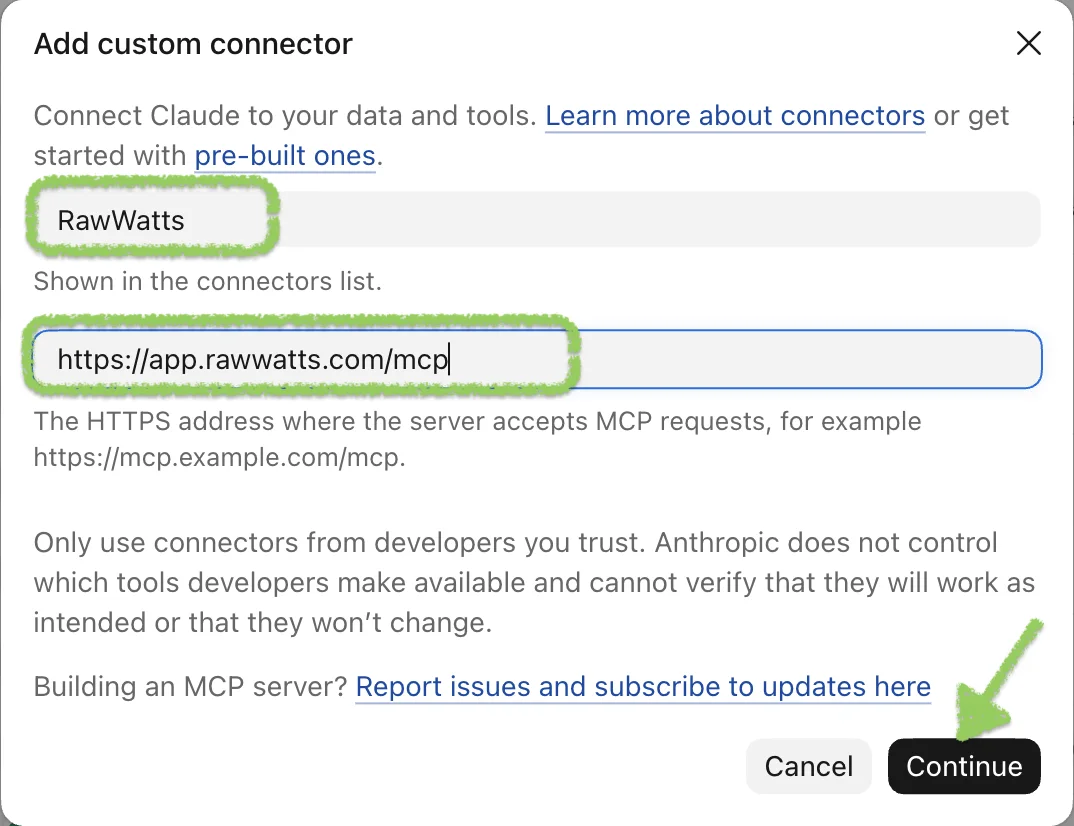
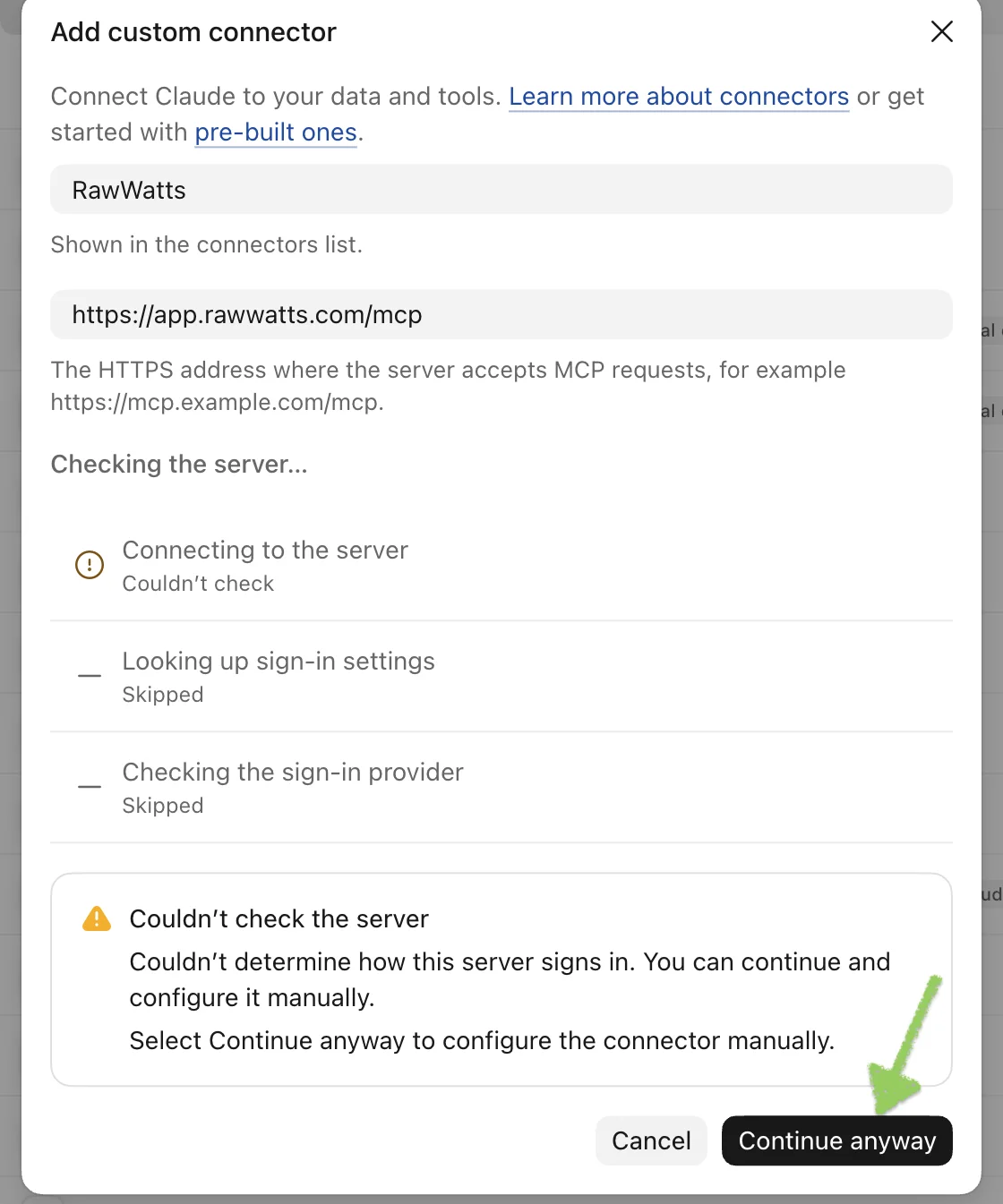
- If Claude says Couldn't check the server, tap Continue anyway.
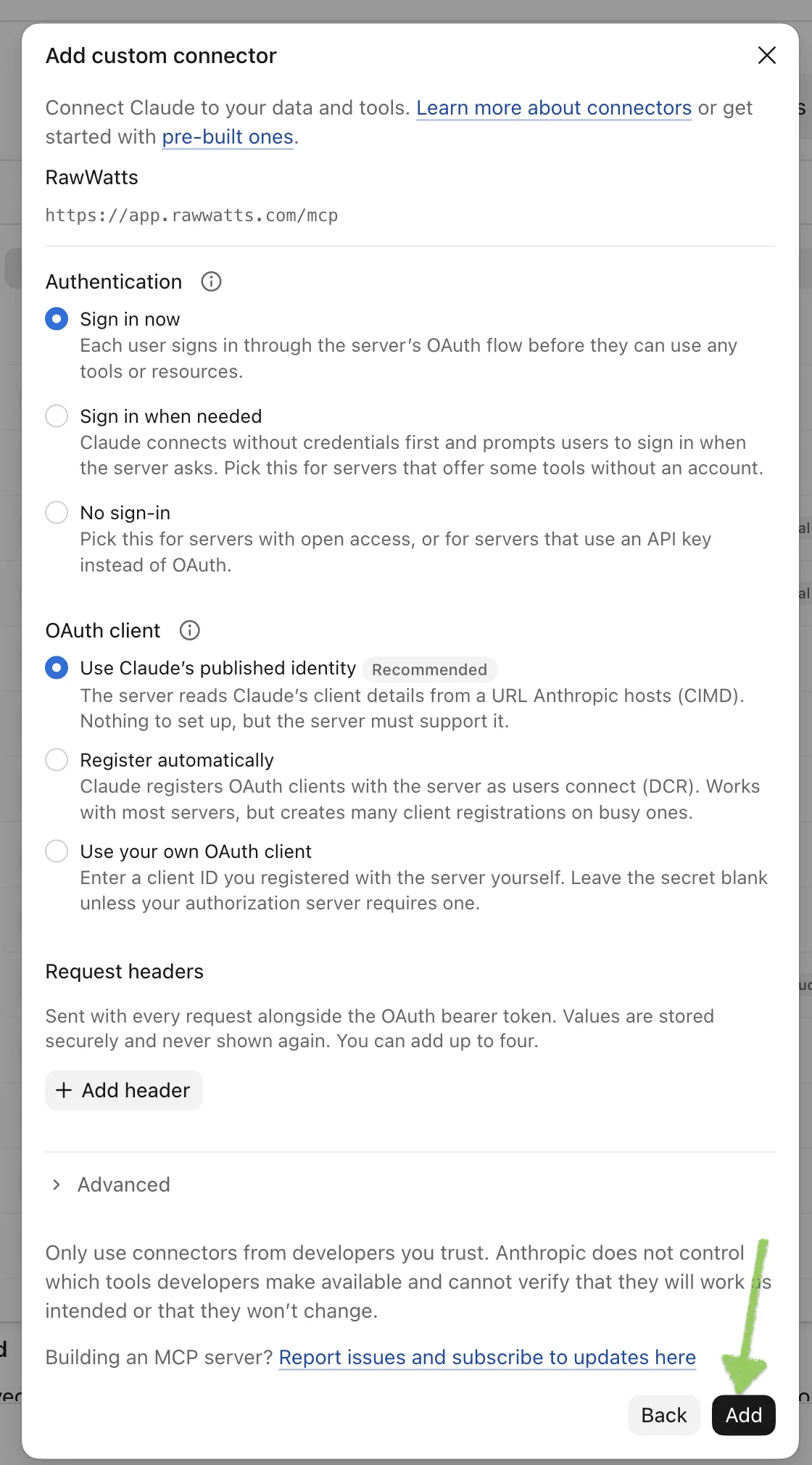
- Leave Sign in now and Use Claude's published identity selected, and tap Add.
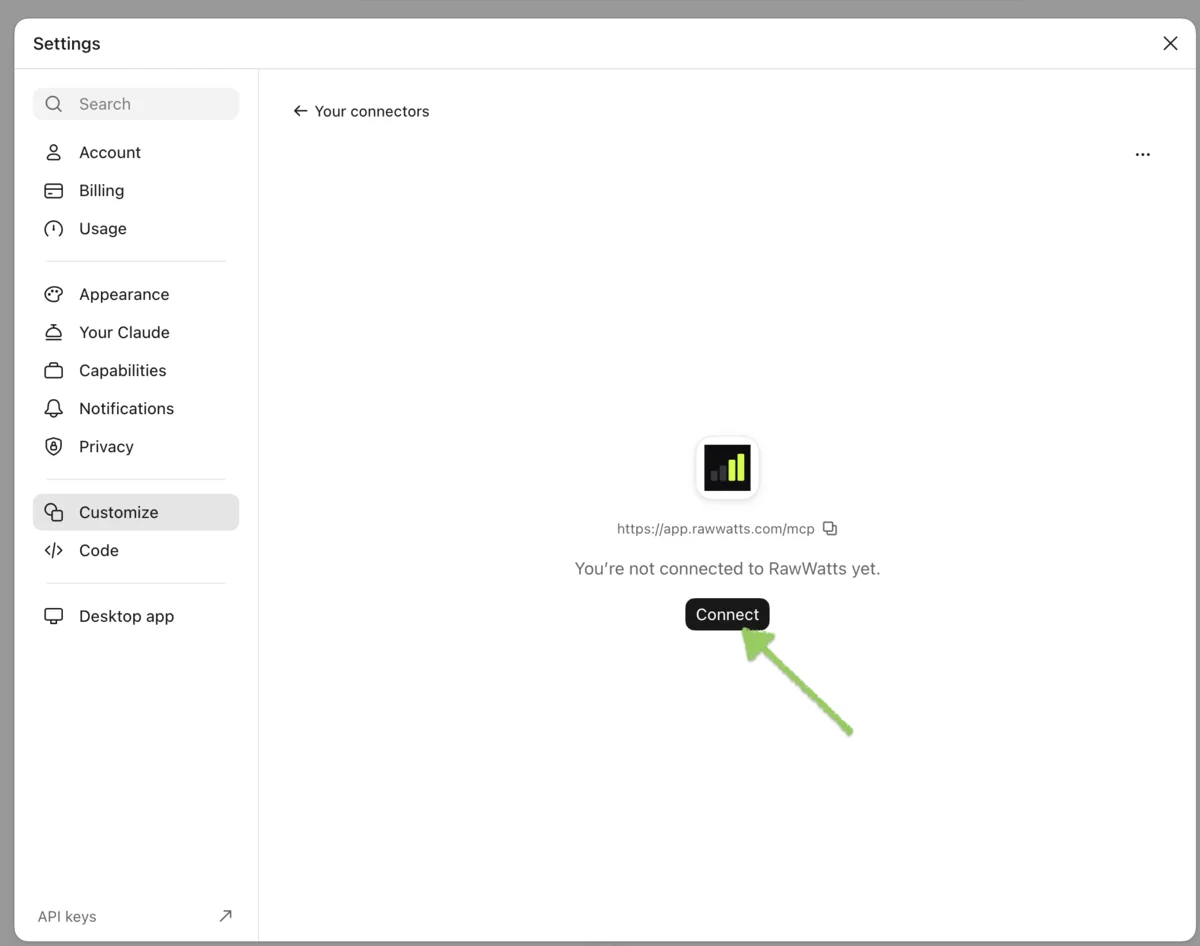
- RawWatts now shows as not connected yet. Tap Connect.
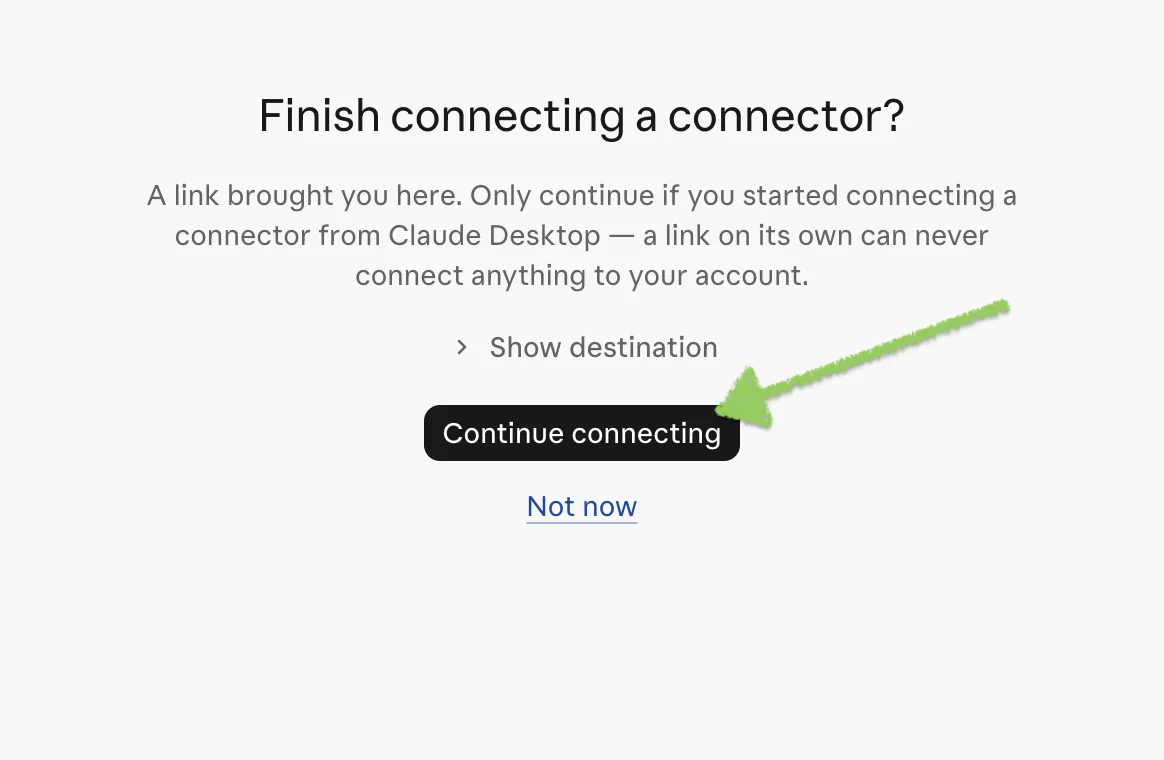
- Your browser opens and asks Finish connecting a connector? Tap Continue connecting.
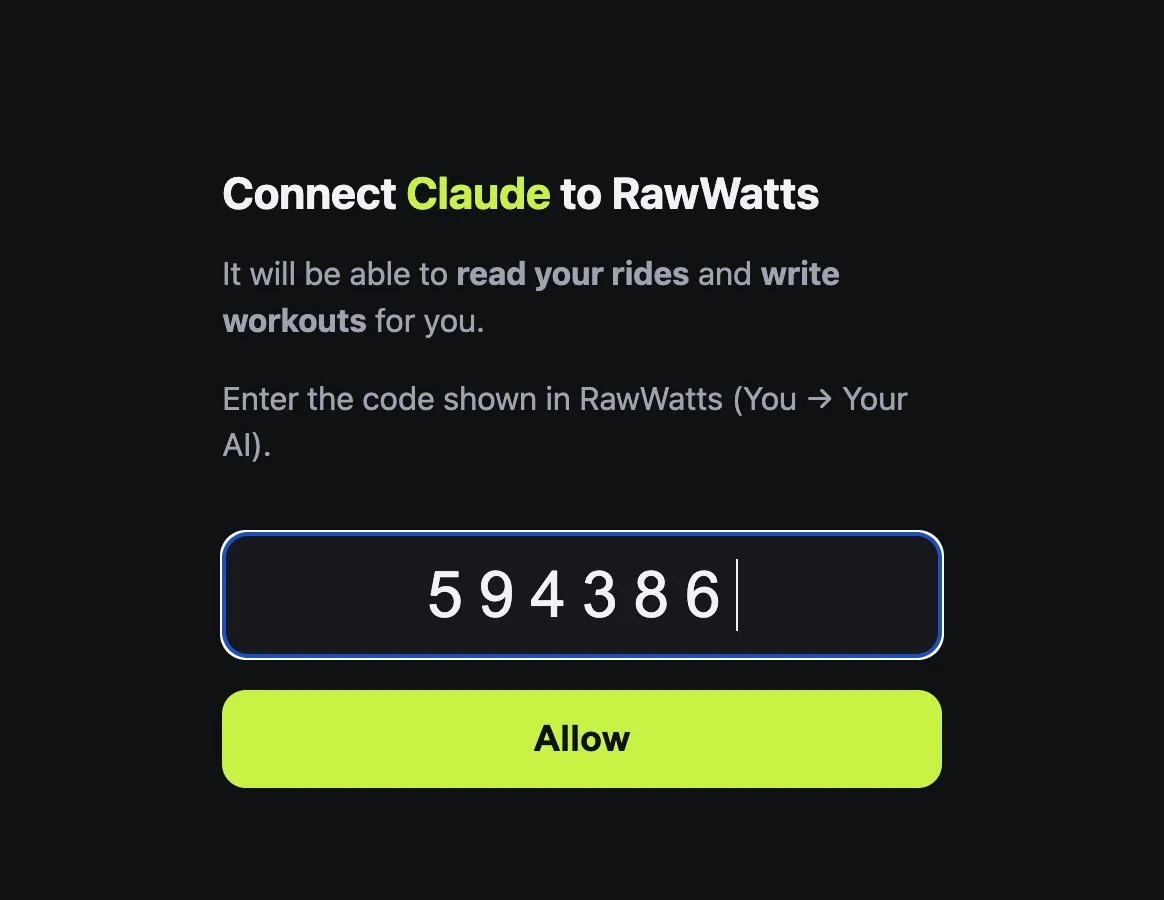
- A RawWatts page opens: “Connect Claude to RawWatts”. Type the 6-digit code from the app and tap Allow.
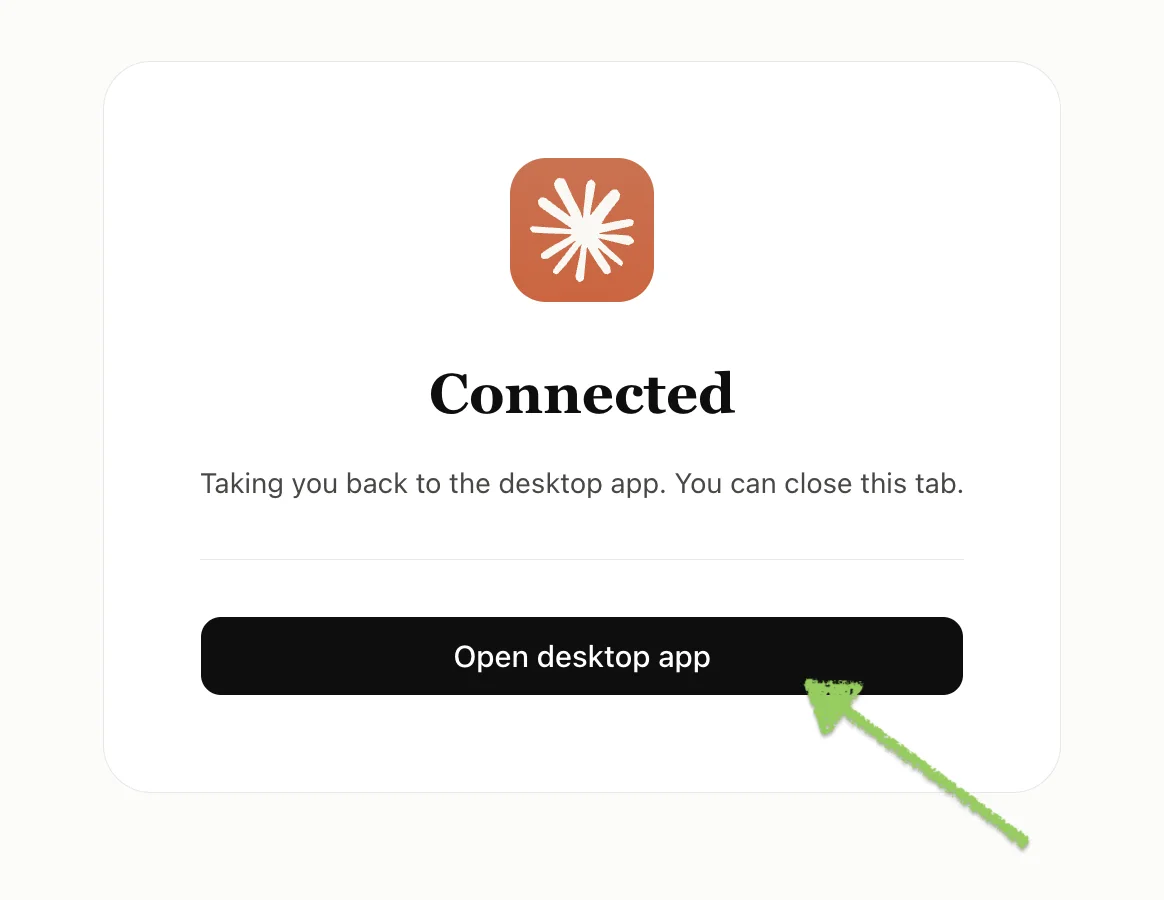
- Claude shows Connected. Tap Open desktop app to go back.
You add the connector once. Claude on your iPhone uses it too.
ChatGPT
In the ChatGPT desktop app:
- Open Settings → Plugins and the MCPs tab. Choose Add → Add MCP server. Name: RawWatts. Type: Streamable HTTP. URL:
https://app.rawwatts.com/mcp. Leave the rest empty and tap Save.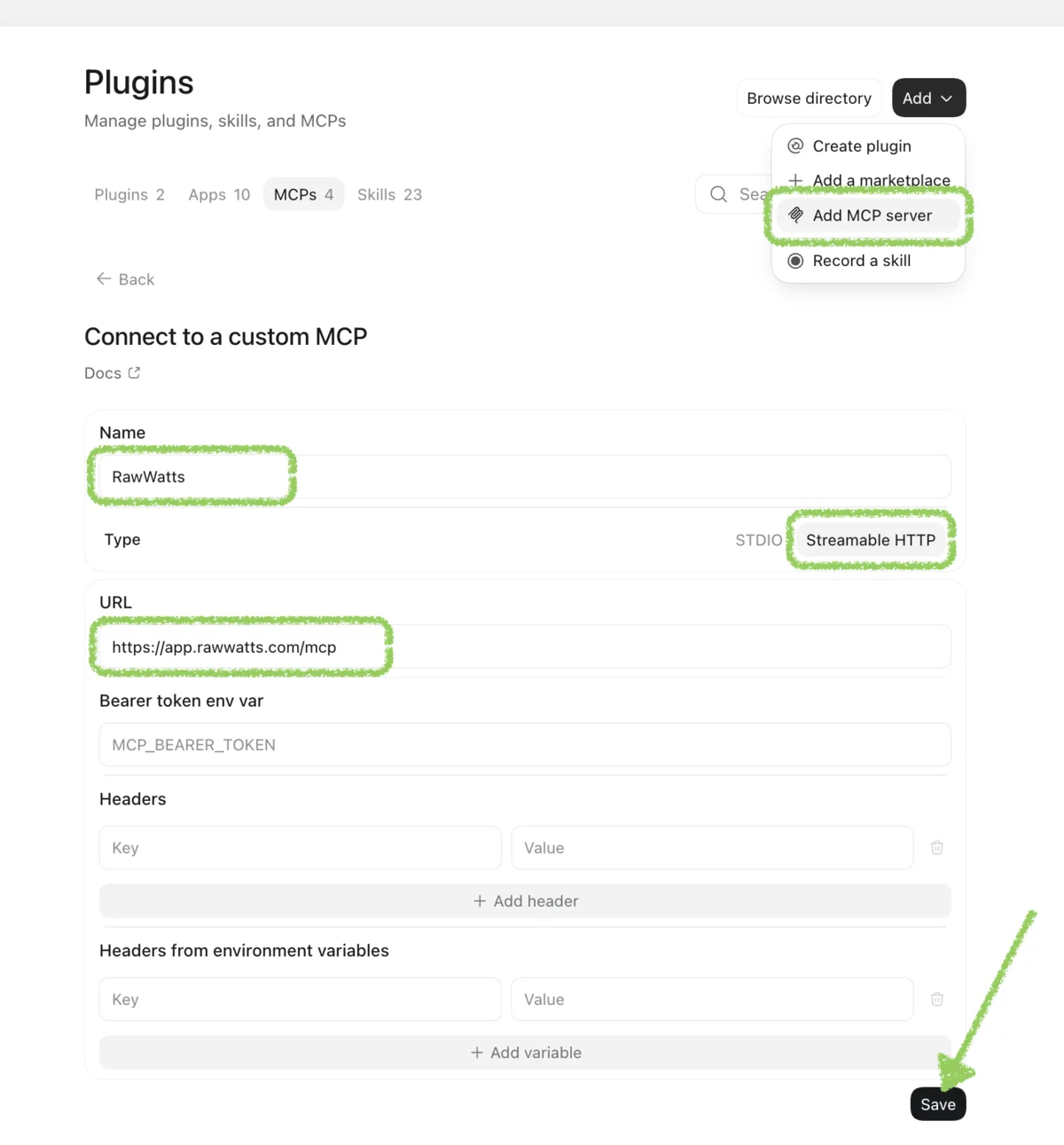
- RawWatts now appears in the list of servers. Tap Authenticate next to it.

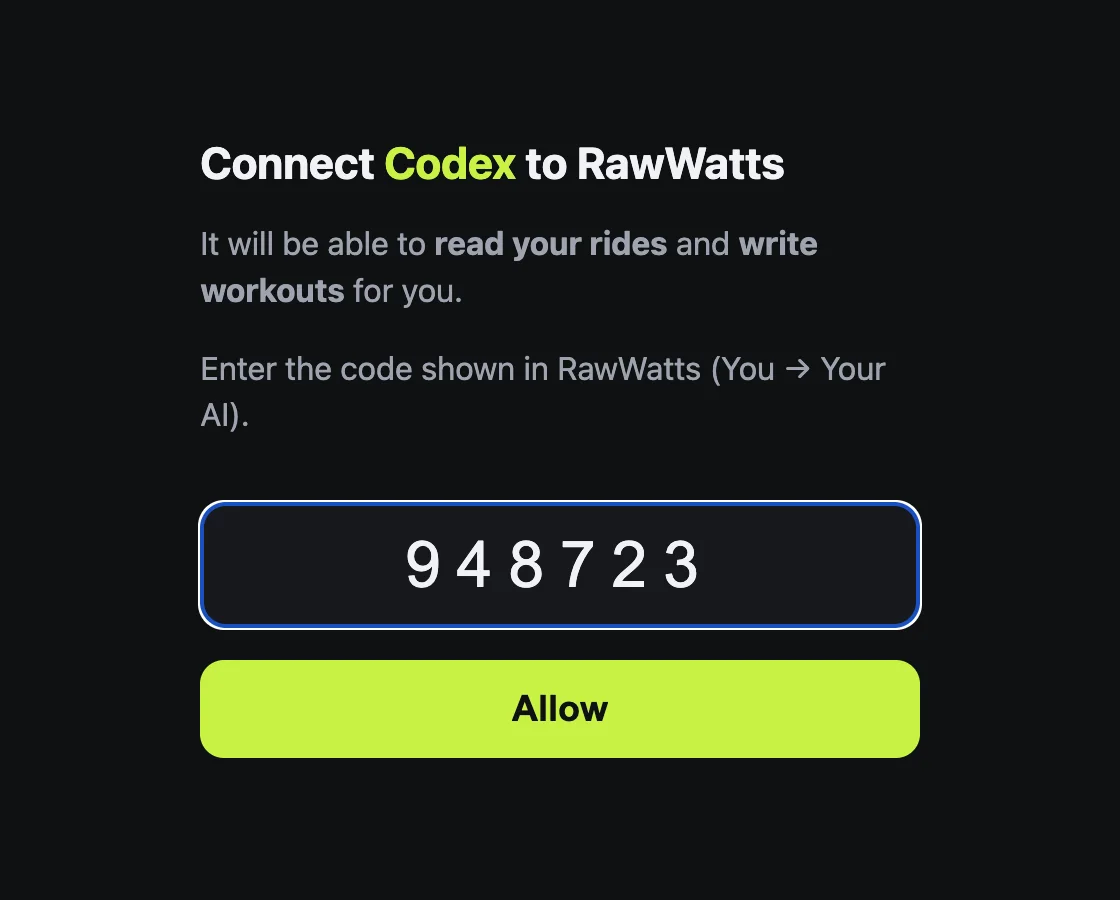
- A RawWatts page opens in your browser. Here it says “Connect Codex to RawWatts”: that is the name the ChatGPT app gives itself. Type the 6-digit code from the app and tap Allow.
- The browser says Authentication complete. Close the window and go back to ChatGPT.
- In a new chat, ask “Are you connected to my RawWatts account?”. ChatGPT asks before it uses RawWatts the first time; tap Allow once or Always allow.
At chatgpt.com:
- Open Settings → Apps & Connectors. Under Advanced settings, turn on Developer mode; ChatGPT asks for it before it accepts a connector of your own.
- Back in Apps & Connectors, choose Create. Name: RawWatts. MCP server URL:
https://app.rawwatts.com/mcp. Authentication: OAuth. Confirm and tap Create. - A RawWatts page opens: “Connect ChatGPT to RawWatts”. Type the 6-digit code from the app and tap Allow.
- In a new chat, add RawWatts from the + menu to use it.
Connecting a second assistant works the same way: Connect another assistant in the app gives you a new code. Each one shows up in the app with when it was last used.
03Things to try
- “How did my last three threshold rides compare?”
- “Write me a 45-minute sweet spot workout for tomorrow.”
A workout arrives the next time you open RawWatts, or when you open Workouts. Your assistant writes it in the RawWatts workout format, the same text you can write yourself.
04What is stored, and where
Your iPhone keeps everything, as it always does. Connecting puts a copy of your rides, workouts and body settings, including heart rate, on the RawWatts server in Frankfurt (Google Cloud). Your assistant reads from there. Nothing leaves your iPhone before you agree in the app and connect an assistant. Without a connection, RawWatts works exactly as before, and nothing about your rides reaches our server.
You need no account to ride. Connecting creates one in the background: no name, no password, nothing to sign in to. Adding your email is optional. With it, you can get your rides back on a new iPhone, and we may write to ask how it's going. It goes on no mailing list.
Your assistant belongs to you, and so does its provider. Anthropic or OpenAI, for example, receive what your assistant reads, under your own agreement with them.
To remove everything: in the app, You → Your AI → Remove connection and server data. It disconnects every assistant and deletes your rides, workouts, body settings and email from our server. Your rides stay on your iPhone. To end the access of a single assistant, tap it and choose Disconnect. Details are in the privacy policy.